How to use the GuestPass guard app
2:14
A guard’s first day on the GuestPass Android app: sign in with the login from the text, allow notifications and the camera, register a visitor, and check them out with the exit code.
Transcript
When you add a guard, GuestPass texts them a username and a temporary password. This is Peter’s first day at the gate.
Open the GuestPass app on the gate phone. A short tour shows how GuestPass works.
Swipe through the four-screen tour, then tap I already have an account, because the estate has already set Peter up.
Accept the privacy policy and the terms of use. This happens once, on the first sign-in.
Sign in with the username and temporary password from the text. Peter types his username, then the password, and taps Log in.
Allow notifications, so approvals, resident messages and alarms reach the gate the moment they happen. Android asks once more: tap Allow.
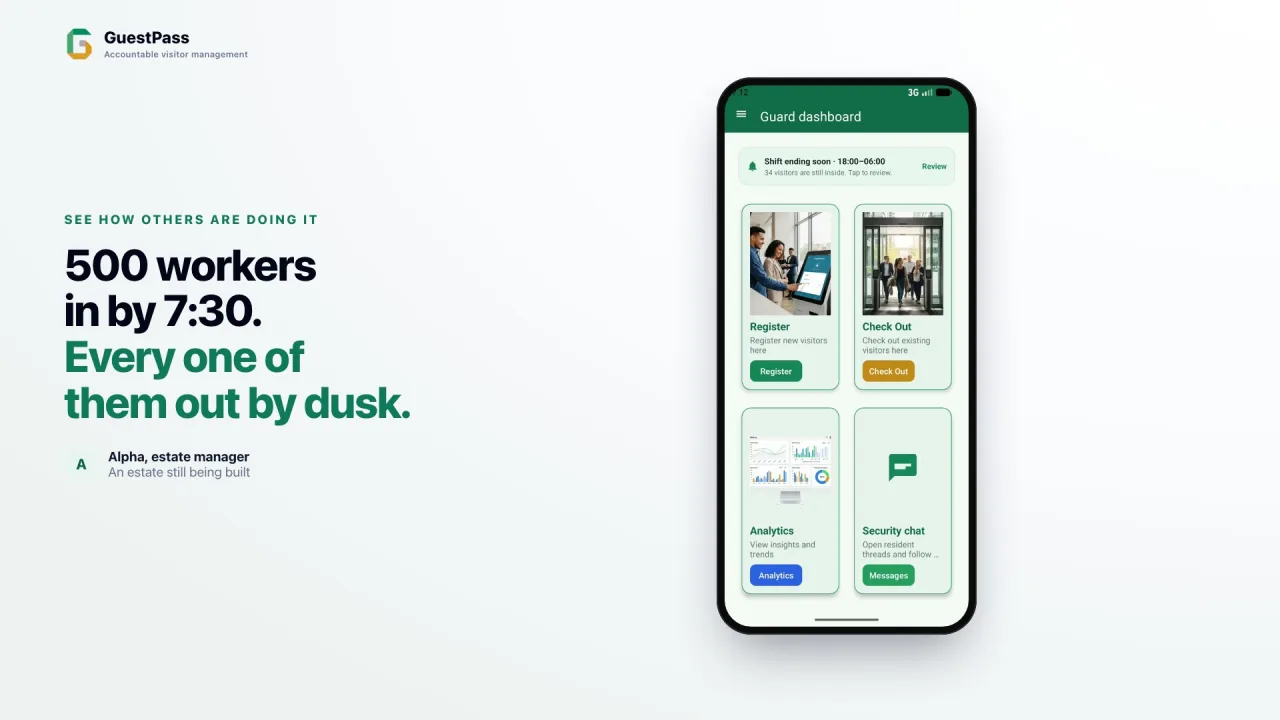
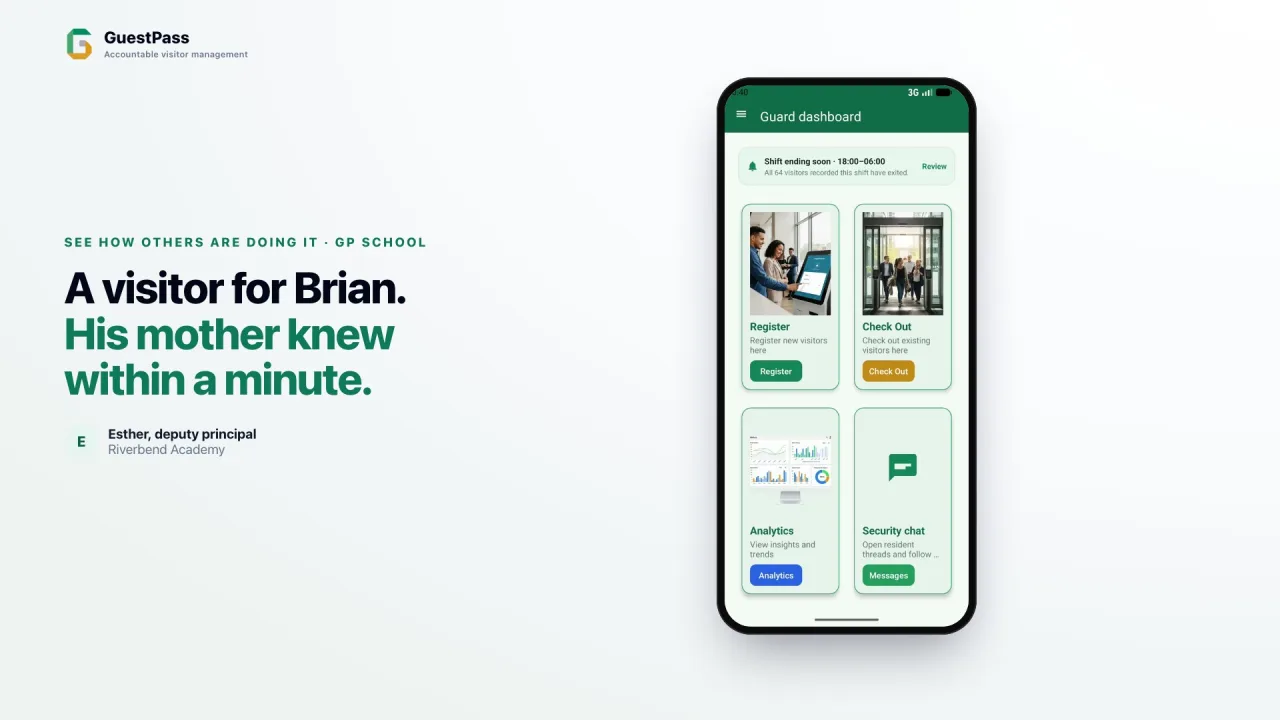
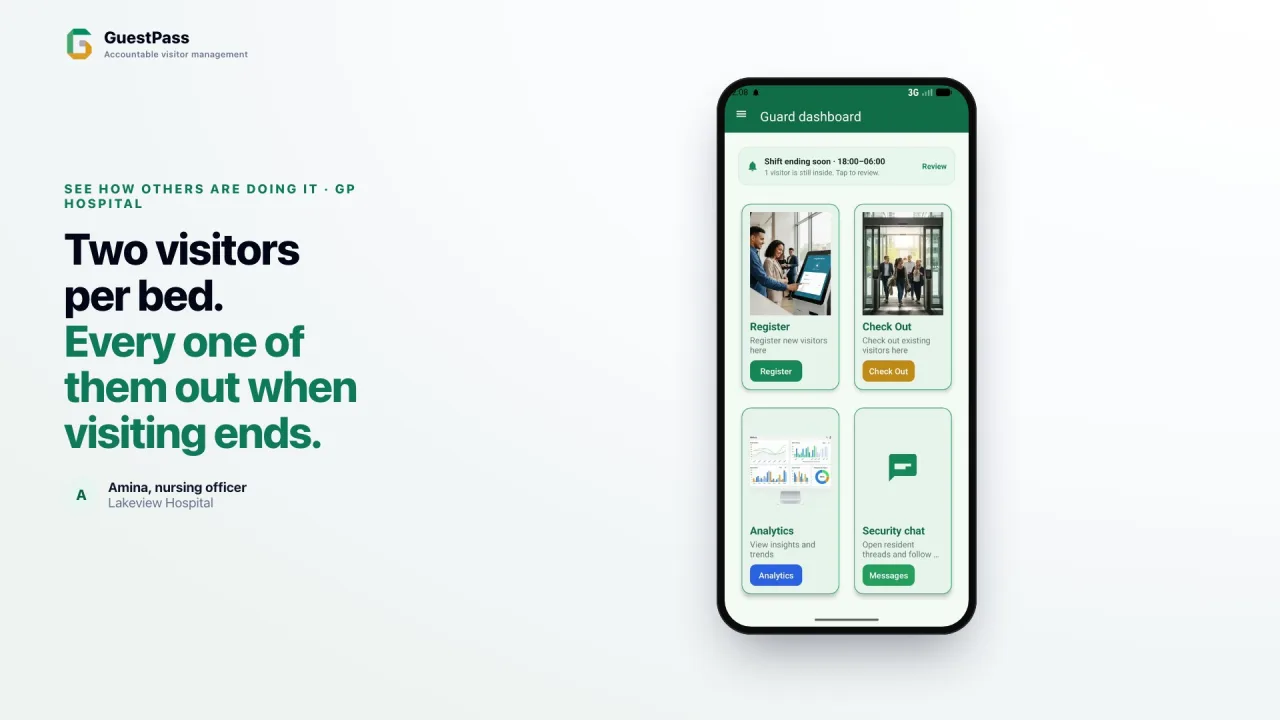
This is the guard dashboard. It shows the shift, and the two jobs at the gate: registering visitors and checking them out.
Tap Register. Allow the camera, which takes the visitor’s photo and a photo of their ID.
Choose the house the visitor is going to: type the house number and pick it from the list. Then enter the visitor’s full name, their ID number or vehicle plate, and their phone number. Last, choose the reason for the visit, here a delivery.
Check the details and send. GuestPass saves the visit on the phone first, so nothing is lost if the network drops, then texts the host with the visitor’s details and an exit code.
When the visitor leaves, tap Check Out and choose Exit code. Enter the code the host shared with the visitor, and GuestPass finds the open visit. Tap Check Out All: the visit closes, and the host is told.
That is a full visit at the gate: recorded on arrival, and checked out when the visitor leaves.