How to sign up for GuestPass
2:01
Sign up in about two minutes: continue with Google, send a test visitor, get the SMS alert on your phone, name your place, check the visitor out at the gate, and add your guard.
Transcript
This is GuestPass. In the next few minutes you will sign up, send a test visitor to your own phone, and get your gate ready for real visitors.
Start on the GuestPass home page and click Sign up.
Continue with Google. Your name and email come straight from your Google account, so there is no form to fill in and no password to remember.
GuestPass creates your workspace with one hundred free visits, then asks for a first test visitor. Click Fill in a sample visitor, then Send test visit.
The alert for this visitor goes to your own phone. Type your number. Below it is the exact SMS you will receive. Click Send SMS.
Within seconds the SMS lands on your phone, with the visitor’s name, the reason for the visit, and an exit code for when they leave. You know someone is at your gate, wherever you are. Approve the visit here to carry on.
Now name your place. Choose the kind of place, give it a name, and click Continue. The name appears on your dashboard and in your reports.
This is your dashboard. It shows who is inside right now: Amina, until the gate checks her out.
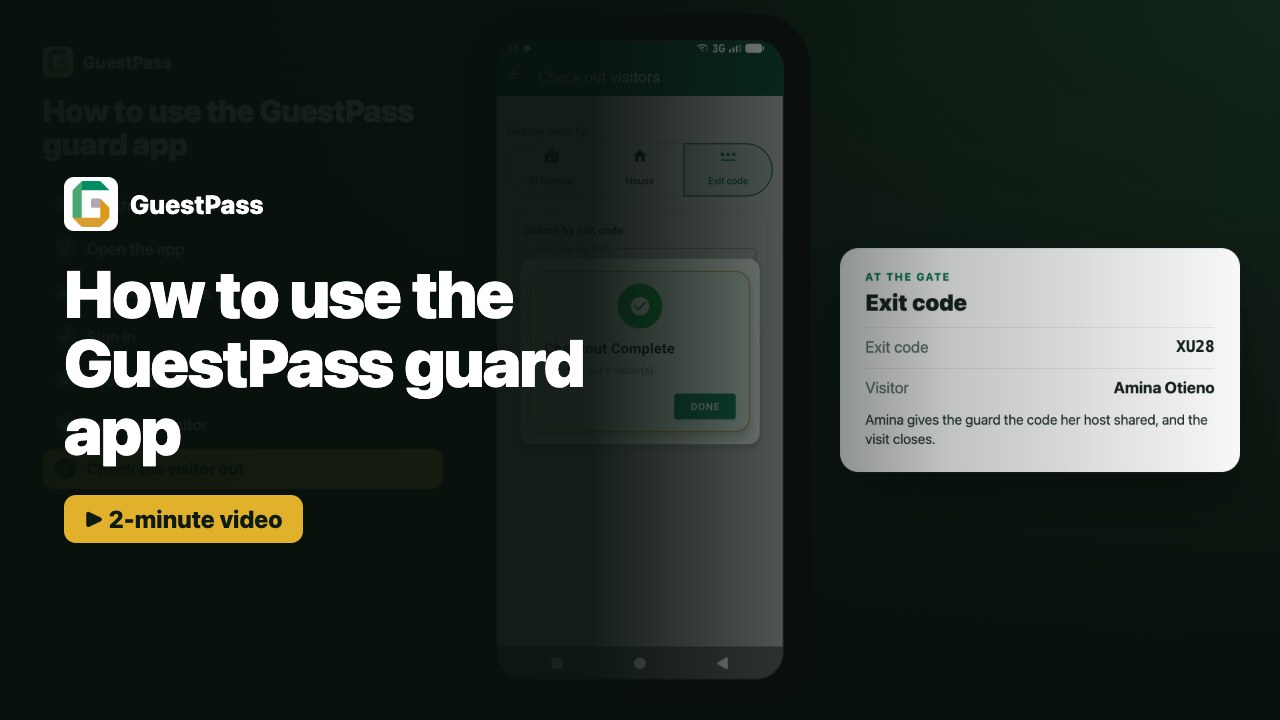
At the gate, the guard uses the GuestPass Android app. Scan this code with the gate’s Android phone and the app opens signed in as your gate. When Amina leaves, the guard enters her exit code, and the visit closes.
Visit cleared. Finally, add your guard. Enter their name and phone number, and GuestPass sends them a login by SMS.
Peter gets a text straight away, with his username and a temporary password for the GuestPass app.
When your guard signs in on the app, setup is complete. Your gate is live: every visitor from now on is recorded, approved, and checked out when they leave.